Key Verification
In this example, our aim is to quickly implement the basic licensing functionality into your application.
Please make sure to add the client API for your language, as described in this tutorial.
If you would experience any issues, please check common errors section.
Example
It is quite easy to verify a license. This can be done with the code snippet below. In order to make it work, you need to change three parameters:
RSAPubKey- you can find this key on this page, by going to the API Keys section.Access Token- you can find this key on this page, by going to the API Keys section.ProductId- you can find it on the product page, which you can find more about here.
For production use cases, it is better to create a specific access token as described here.
The code below should be included whenever you want to verify a license key, which normally occurs during app start (eg. Form_Load for desktop apps). In addition, you can invoke it whenever a user updates the license key. In some licensing models, this check needs to be called periodically.
Adding namespaces
In C#
To get the C# code to work, please install Cryptolens.Licensing package from NuGet. If your application will run on multiple platforms, please install Cryptolens.Licensing.CrossPlatform instead (see this tutorial).
using SKM.V3;
using SKM.V3.Methods;
using SKM.V3.Models;
The code to verify a license key is available here.
Key verification
In C#
var licenseKey = "GEBNC-WZZJD-VJIHG-GCMVD";
var RSAPubKey = "Enter the RSA Public key here. Click here to view it.";

var auth = "Access token with permission to access the activate method. Click here to view it.";
var result = Key.Activate(token: auth, parameters: new ActivateModel()
{
                Key = licenseKey,
                ProductId = 3349,
                Sign = true,
                MachineCode = Helpers.GetMachineCode()
});

if (result == null || result.Result == ResultType.Error ||
                !result.LicenseKey.HasValidSignature(RSAPubKey).IsValid())
{
                // an error occurred or the key is invalid or it cannot be activated
                // (eg. the limit of activated devices was achieved)
                Console.WriteLine("The license does not work.");
}
else
{
                // everything went fine if we are here!
                Console.WriteLine("The license is valid!");
}

Console.ReadLine();
Note: If your application will run in Unity/Mono, Rhino/Grasshopper or on a platform other than Windows, we recommend to use a different version of Key.Activate.
Common errors
Helpers.GetMachineCode issues
In some Windows environments (e.g. when developing Excel addins), it might not be feasible to call Helpers.GetMachineCode on .NET Framework 4.6. The reason for this is the call we make to System.Runtime.InteropServices.RuntimeInformation.IsOSPlatform. To fix this, we have added a boolean flag in Helpers class. Before calling Helpers.GetMachineCode or Helpers.IsOnRightMachine, please set Helpers.WindowsOnly=True.
Helpers.WindowsOnly = true;
var machineCode = Helpers.GetMachineCode();
Namespaces missing
This means that CheckEntitlement .Licensing library was not included into the project. It can be easily added using NuGet packager manager, which you can find by right clicking on the project:
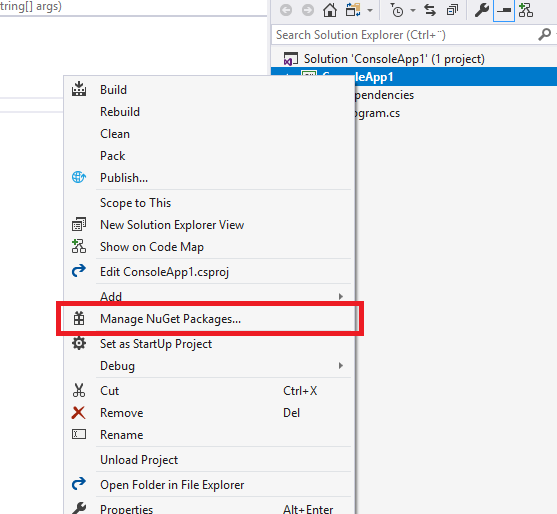
Note,
CheckEntitlement .Licensinghas nothing in common withSKGL. There is no need to includeSKGL.
Result is null
In most cases, this is because some of the required parameters are missing. These are:
RSAPubKeyauthProductId
It can also be that the licenseKey is missing. Please check the beginning of the tutorial on how to find them.
Note, if you have blocked a license key, it will also return a
nullresult.